
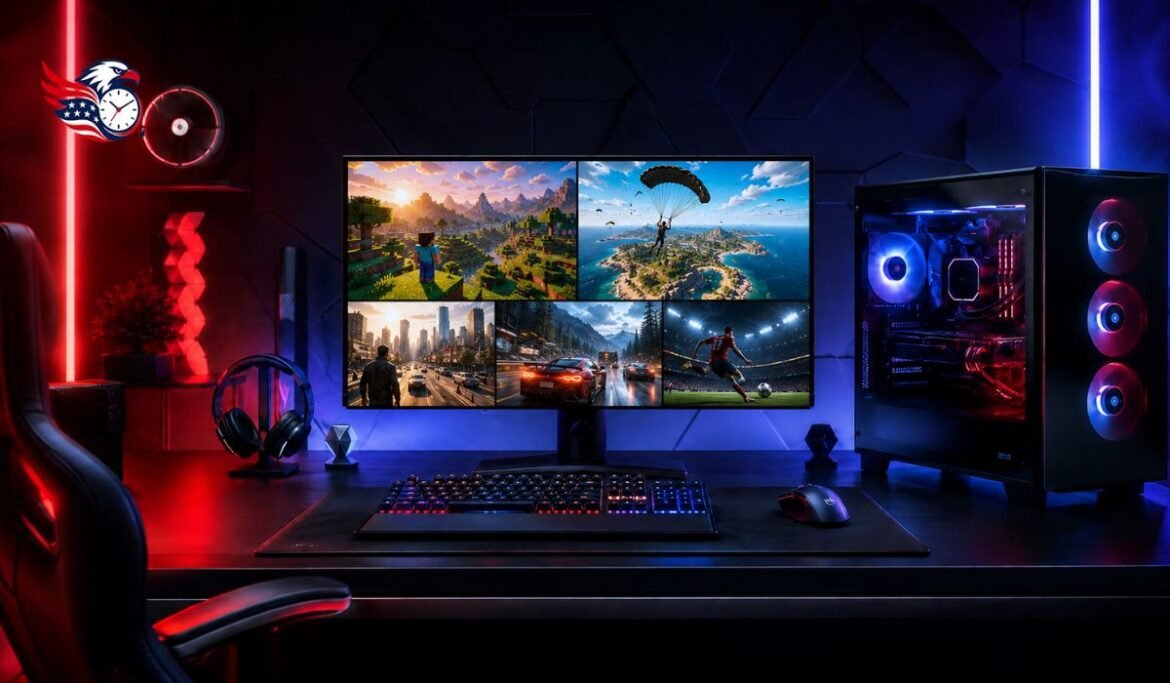
Omen Gaming Hub is HP’s central control app for gaming computers, accessories, lighting, and system performance. It comes preinstalled on many HP OMEN and Victus laptops and desktops, but it can also be downloaded on other Windows computers. The app brings several gaming tools into one dashboard, making it easier to monitor hardware, manage games, adjust cooling, and personalize a setup. However, the controls you see depend on your computer model, hardware, drivers, and region. This guide explains how the software works in 2026, how to set it up correctly, and which features may improve your gaming experience.
What Is Omen Gaming Hub?
Omen Gaming Hub is a free Windows application developed by HP. It was previously known as OMEN Command Center, but it has grown into a broader gaming platform. On compatible OMEN and Victus systems, it can communicate directly with the computer’s hardware. This deeper connection may provide access to performance modes, fan settings, graphics switching, lighting controls, and power management. On a non-HP computer, the app may still offer a game library, wallpapers, selected optimization tools, and support for compatible HyperX devices. It should therefore be viewed as a flexible collection of tools rather than one identical experience for every user.
System Requirements and Compatibility
HP lists the software for PCs running Windows 10 version 18362 or later, as well as supported versions of Windows 11. In 2026, Windows 11 is the better choice because regular support for most Windows 10 users ended in October 2025. A stable internet connection is required for installation, account services, promotions, and app updates. Some functions also depend on the OMEN SDK package, current BIOS firmware, chipset software, and graphics drivers. Advanced controls are normally limited to specific OMEN or Victus models. Their presence cannot be guaranteed simply because the app installs successfully.
How to Download and Install the App
The safest installation method is through the Microsoft Store or HP’s official download page. Open the Microsoft Store, search for Omen Gaming Hub, confirm that HP Inc. is shown as the publisher, and select Install. After installation, open the program and allow it a few moments to identify the system. A supported HP computer may automatically install or update the OMEN SDK components required for hardware control. Restart Windows if prompted. Avoid unofficial download sites because modified or outdated installers may create security risks, missing controls, or update problems.
For a clean first-time setup, complete the following tasks:
- Install pending Windows updates, update Omen Gaming Hub through the Microsoft Store, install current HP drivers and BIOS updates for your exact model, restart the PC, open the app, and review each available control before changing its default value.
Understanding the Home Dashboard
The home screen acts as a starting point for the app’s main areas. Depending on the device and app version, it may show installed games, system information, recommended settings, rewards, wallpapers, and connected accessories. HP sometimes changes the layout through Store updates, so the names and positions of individual controls may move. The left navigation area usually provides access to the computer, game library, performance tools, Light Studio, and app settings. New users should begin with the device page and System Vitals rather than immediately choosing the highest performance mode.
Monitoring Your PC With System Vitals
System Vitals displays live information about important hardware. Available readings may include processor use, graphics use, memory use, temperatures, clock speeds, and network activity. These figures help you understand whether a game is limited by the CPU, GPU, available memory, or cooling system. A brief rise in temperature is normal when a game starts, especially on a thin laptop. What matters is whether temperatures remain unusually high, performance falls over time, or the system repeatedly stutters. Compare readings during normal use and gaming instead of judging the computer from one short temperature spike.
System Vitals can also help when testing a new graphics setting or power profile. Run the same part of a game before and after the change, then compare frame rate, temperature, fan noise, and power use. Try to change only one setting at a time. This makes it easier to identify what actually produced an improvement. The dashboard is useful for basic observation, but it is not a replacement for proper hardware diagnostics when a computer shuts down, displays visual errors, or reports a failing component.
Performance Control and Thermal Modes
Compatible HP gaming computers may offer performance profiles such as Eco, Balanced, or Performance. Exact names vary by model. Balanced mode is usually the best starting point because it provides a practical mix of speed, temperature, noise, and battery use. Performance mode may allow higher processor or graphics power during demanding games, but it can also increase heat and fan noise. Eco mode reduces power use and may be useful for browsing, streaming, schoolwork, or lighter games. A laptop should normally be connected to its original high-wattage power adapter before Performance mode is selected.
Some models provide manual fan control, intelligent fan options, undervolting, or processor overclocking. These controls are not available on every machine, and their safe ranges vary between processors. Manual tuning should be approached carefully because aggressive settings can cause crashes, extra heat, or reduced stability. Record the original values before making changes and test small adjustments gradually. If the system becomes unstable, return to the default profile. Faster fans can help manage temperature, but they cannot correct blocked vents, dust buildup, damaged cooling hardware, or an unsuitable power adapter.
OMEN AI and Automatic Game Optimization
OMEN AI is designed to recommend or apply settings for supported games and hardware. Its exact behavior depends on the computer, graphics hardware, game, and current software version. Where available, it can reduce the work involved in balancing image quality, frame rate, and system performance. This may be helpful for players who do not want to tune every graphics option by hand. It should not be treated as a guaranteed frame-rate upgrade, however. Results can differ between games, and personal preferences still matter.
Before using automatic optimization, launch the game normally and note how it performs. Then apply the suggested profile and compare the same location or built-in benchmark. Check visual quality as well as average frame rate, frame-time consistency, temperature, and fan noise. If the optimized result looks worse or creates unstable performance, restore the previous settings. Competitive players may prefer a higher frame rate, while players of story-driven games may choose stronger visual detail. The most useful setting is the one that fits your display and playing style.
Graphics Switching and Power Management
Selected gaming laptops include a Graphics Switcher or similar control. Hybrid mode uses integrated graphics for lighter work and activates the dedicated GPU when required, which can improve battery life. Discrete mode directs display work toward the dedicated graphics processor and may provide stronger or more consistent gaming performance. Changing this setting can require a restart. The option is only shown on systems with supported graphics hardware and display routing, so its absence does not mean the application is broken.
Power settings should match how the computer is being used. For gaming while plugged in, a performance-focused profile and the dedicated GPU may produce the best results. For travel or everyday work, hybrid graphics and a balanced or lower-power profile can reduce heat and battery drain. Battery performance will normally be lower than plugged-in performance because a laptop battery cannot provide the same continuous power as the supplied adapter. Third-party chargers may also limit performance even if they can charge the computer.
Network Booster and Online Gaming
Network Booster helps prioritize game traffic over less urgent activity. In automatic mode, it can identify games and give them higher network priority. Some versions may also offer custom controls for individual applications. This can be useful when cloud storage, launchers, browsers, or background downloads compete for bandwidth. It cannot increase the speed purchased from an internet provider or repair a weak connection. Distance from the game server, Wi-Fi interference, router quality, and congestion outside the home still affect latency.
For reliable online play, use Ethernet when possible. If Wi-Fi is required, connect to a suitable 5 GHz or 6 GHz network near the router and pause large downloads. Network Booster is most helpful when other programs are actively using the connection. It may make little difference on a fast, quiet network. If online problems continue, test the game with the tool both enabled and disabled. Also restart the router, check for packet loss, and confirm that the problem is not limited to one game server.
Game Library, Cloud Gaming, and Discovery Tools
The game library can gather titles from several PC platforms into one interface, reducing the need to search through multiple launchers. Support can include games associated with services such as Steam, Epic Games, Xbox, and other stores, although detection varies. A title may still open its original launcher for ownership checks, updates, or cloud saves. If a game is missing, allow the app to scan again or launch the title once from its original platform. Manually installed games and uncommon launchers may not always appear automatically.
HP also promotes access to selected cloud gaming services, game offers, rewards, giveaways, and free wallpapers through the Hub. Availability differs by country, age requirements, account status, and promotional period. Cloud gaming still needs a strong, stable connection and may require a separate subscription. Users should read the displayed terms before claiming an offer. These optional areas can be ignored if the main goal is hardware control, and their absence in a particular region does not affect the computer’s normal gaming ability.
Personalizing RGB With OMEN Light Studio
OMEN Light Studio provides expanded RGB controls for compatible OMEN and HyperX hardware. Users can create colors, zones, animations, and synchronized effects across supported devices. Some computers also include simpler lighting controls on their device page. Light Studio is useful for building a unified desk theme, but compatibility should be checked for each accessory. A product having RGB lighting does not automatically mean Light Studio can control it. Hardware from another brand may require its own application.
Complex animated effects can use additional background resources, although the impact is often small on modern gaming PCs. If lighting stops responding, update both the Hub and the connected device firmware, reconnect USB accessories, and close other RGB programs that may be trying to control the same hardware. Conflicting lighting utilities are a common reason for lost settings or frozen effects. Saving a simple profile first gives you a reliable configuration to return to after experimenting with more advanced designs.
Common Problems and Practical Fixes
If Omen Gaming Hub will not open, shows a blank page, or loses hardware controls, begin with updates. Install Windows updates, Microsoft Store updates, current graphics and chipset drivers, and HP firmware for the exact computer model. Restart the machine after these changes. In Windows Settings, open Apps, locate Omen Gaming Hub, select Advanced options, and try Repair. Use Reset only if Repair fails because resetting can remove local app settings. Reinstalling the app and its supporting components may solve damaged-file problems.
Missing performance or lighting controls often have a different cause. The feature may not be supported by that model, or the required OMEN SDK and HP services may need attention. Do not install drivers intended for a similar-looking computer because model-specific packages can differ. Check the full product number before selecting support software. If an update suddenly removes access to device controls, update the Microsoft Store app and Windows first, restart, and then check the relevant HP packages. Persistent hardware errors should be handled through HP support rather than unsafe registry changes.
Does the App Reduce Gaming Performance?
Like any background application, the Hub and its related services use some memory and processor time. On a current gaming computer, the effect is usually modest, especially when optional live features are not active. Older systems with limited memory may notice a larger difference. Use Task Manager to compare resource use while the app is idle and while its monitoring or lighting tools are running. Closing the visible window may not stop every supporting service because some features need background access.
Removing the application is reasonable if you never use its controls and have confirmed that it causes a repeatable problem. However, uninstalling it may remove easy access to fan modes, graphics switching, lighting profiles, and other model-specific settings. Before removal, disable automatic startup or unused features and test the computer again. If you uninstall it, Windows will continue to work, but certain OMEN-specific controls may return to firmware defaults or become unavailable until the app is reinstalled.
Final Thoughts
Omen Gaming Hub is most valuable on a compatible OMEN or Victus computer, where it can connect performance, cooling, graphics, lighting, monitoring, and game-management tools in one place. Start with current software, use Balanced mode as a baseline, and test changes rather than assuming the strongest setting is always best. Feature availability differs across models, so a missing panel is not necessarily an error. With careful setup, the Hub can simplify daily gaming and help users understand how their system behaves without turning routine adjustments into a complicated technical project.
Frequently Asked Questions (FAQs)
1. Is Omen Gaming Hub free?
Yes. HP provides the application as a free download for supported Windows PCs. Some connected game services, subscriptions, or promotional content may involve separate costs.
2. Does it work only on HP OMEN computers?
The app can install on many Windows computers, but its deepest hardware controls are designed for supported OMEN and Victus models. Other PCs may receive a smaller selection of features.
3. Should I use Balanced or Performance mode?
Balanced mode is the best starting point for most users. Choose Performance mode when plugged in and running demanding games, provided that extra heat and fan noise are acceptable.
4. Why are some controls missing?
Available controls depend on the exact model, processor, graphics hardware, firmware, drivers, region, and app version. A control shown on another OMEN computer may not be supported on yours.
5. Can Omen Gaming Hub improve frame rates?
Performance profiles and automatic optimization may improve results on compatible hardware, but gains are not guaranteed. Test the same game scene before and after making a change.
6. Is it safe to uninstall the app?
Yes, Windows should continue working after removal. However, you may lose convenient access to OMEN-specific fan, lighting, graphics, power, and performance settings until it is reinstalled.
7. How do I update Omen Gaming Hub?
Open the Microsoft Store, go to the app library, and check for updates. Also install current Windows, HP driver, BIOS, and device firmware updates for reliable hardware integration.
Read Next: What Is Hastovenator? Origin Story of Blood Mall’s Terrifying Horror Boss





One thought on “Omen Gaming Hub Guide 2026: Features, Setup & Everything You Need to Know”
Comments are closed.